
MalMon
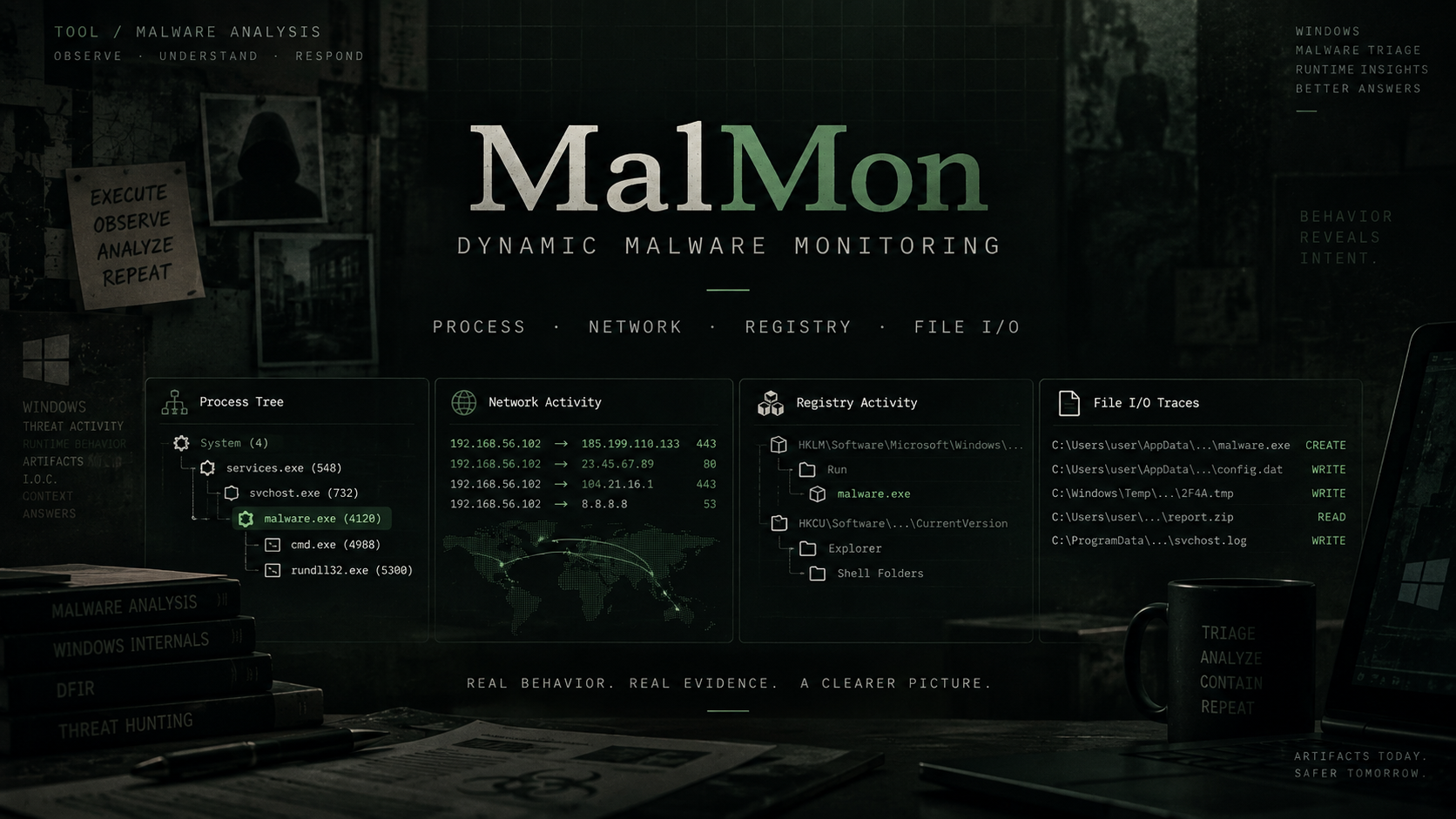
A Windows-focused dynamic malware analysis and triage tool that monitors process trees, command lines, network connections, registry activity, and file I/O, then exports structured HTML and JSON reports.
ON THIS PAGE / 15 SECTIONS
MalMon is a Windows-only dynamic runtime monitoring tool designed for quick malware and suspicious-sample triage.
It can launch an executable, open an Office document, or wait for a target process to appear. During execution, it tracks activity related to the monitored process tree and produces readable console output together with structured HTML and JSON reports.
What MalMon Monitors
MalMon collects several types of runtime activity on a best-effort basis.
Process Activity
MalMon tracks the root process and its descendants using Windows ETW process events together with live process snapshots.
Network Connections
TCP connections associated with tracked process IDs are collected using psutil.net_connections() when available, with netstat -ano as a fallback.
Very short-lived connections may be missed when the polling interval is not fast enough.
Registry Activity
Registry activity associated with tracked processes is collected through Windows ETW.
Registry ETW frequently requires Administrator privileges. If MalMon is not elevated, registry ETW is automatically disabled.
File Activity
MalMon monitors file I/O through Windows ETW and highlights activity involving locations commonly relevant during malware analysis, including:
- Temp
- Downloads
- Roaming
- Startup
It also applies heuristics to identify probable newly created files.
Requirements
MalMon is intended for Windows analysis environments.
- Windows 10, Windows 11, or Windows Server
- Python 3.9 or newer
logmantracerptpsutilis optional but recommended
Installation
From inside the MalMon project directory:
python -m pip install -U pip
python -m pip install -e .
After installation, the main CLI command is:
malmonBasic Usage
Display the standard help:
malmon --helpDisplay all available options:
malmon --full-helpAnalyze an EXE
Monitor an executable using the default duration:
malmon exe "C:\path\to\sample.exe"Specify an output directory and monitoring duration:
malmon exe "C:\path\to\sample.exe" --out "MalMon_output" --duration 60Generate an HTML report:
malmon exe "C:\path\to\sample.exe" --duration 30 --out "MalMon_output" --out-htmlPass arguments to the monitored executable:
malmon exe "C:\path\to\sample.exe" --duration 60 --out "MalMon_output" --out-html -- --arg1 value1 --arg2Analyze Office Documents
MalMon can open Microsoft Office documents and monitor the resulting process activity.
malmon office "C:\path\to\document.docx" --duration 45 --out "MalMon_output" --out-htmlmalmon office "C:\path\to\sheet.xlsx" --duration 45 --out "MalMon_output" --out-htmlmalmon office "C:\path\to\slides.pptx" --duration 45 --out "MalMon_output" --out-htmlAnalyze a DLL
A DLL can be executed through rundll32.exe and monitored by MalMon.
malmon exe "C:\Windows\System32\rundll32.exe" "C:\path\to\sample.dll",Run --duration 30 --out "MalMon_output" --out-htmlAlternatively, MalMon can wait for a specific loader process:
malmon wait --image rundll32.exe --cmd-contains sample.dll --duration 30 --out "MalMon_output" --out-htmlOutput
MalMon is designed to provide analyst-friendly output for fast triage, including:
- Process-tree activity
- Command-line information
- TCP connections
- Registry activity
- File I/O
- Interesting file paths
- Probable file creations
- Console output
- Structured JSON
- HTML reports
Intended Use
MalMon is useful for quick runtime triage when investigating suspicious Windows executables, Office documents, DLLs, and related process activity.
It is designed as an analysis aid rather than a full sandbox replacement.
Repository
Source code, installation instructions, usage examples, and updates are available on GitHub:
License
MalMon is published under the MIT License.
Keep the investigation open.
Have another interpretation, a correction, or a useful trace? Reach out on Discord.
Continue on Discord